How to Extract Text From Reels in Minutes
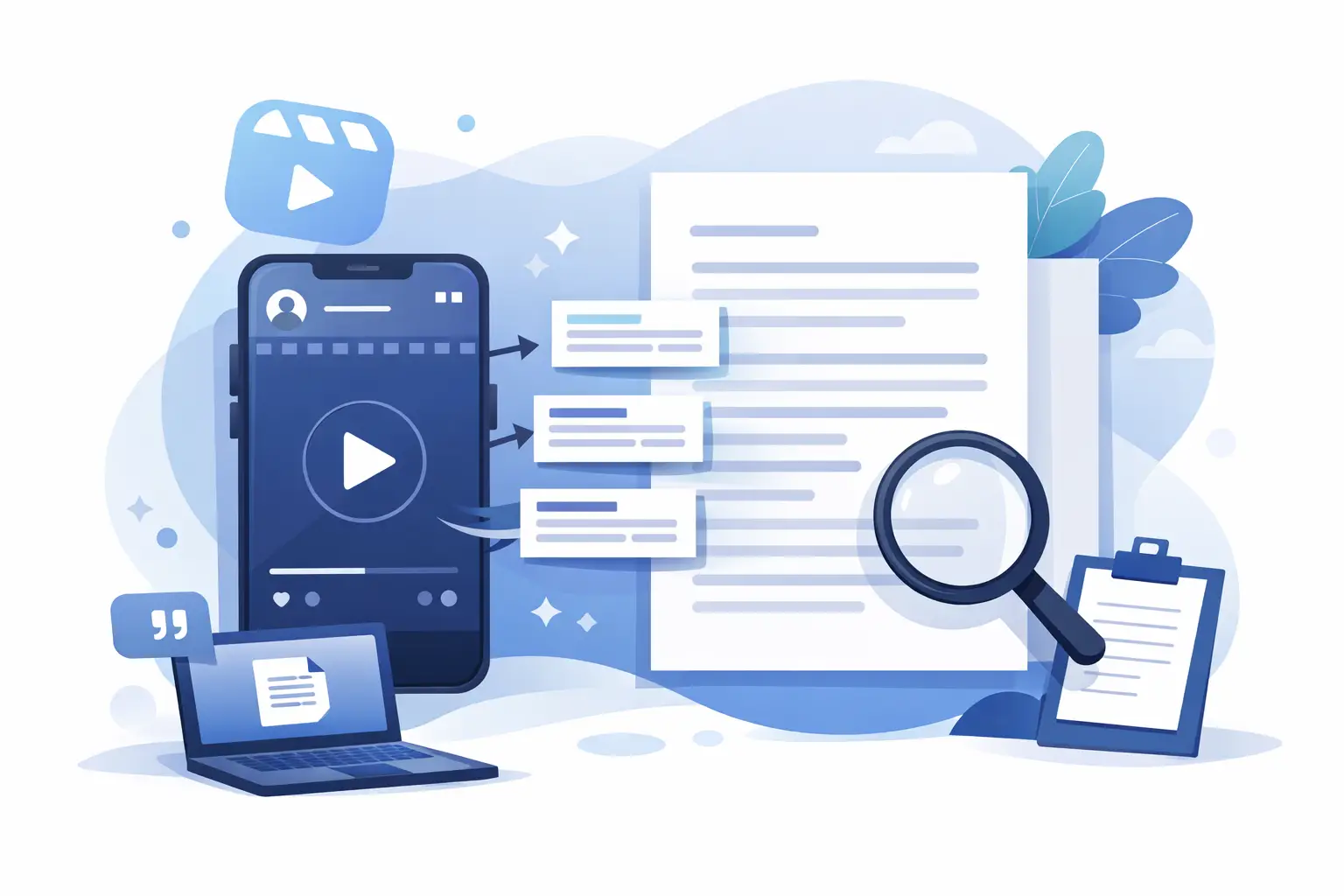
A 45-second Reel can contain a week’s worth of usable ideas: a strong hook, a customer objection, a product demo, a tutorial, or a quote worth turning into a post. The problem is getting that value out of the video without replaying it five times and typing every word by hand. When you extract text from reels, you turn fast-moving social content into an editable asset your team can search, reuse, and publish.
For creators and marketers, that shift matters. Video is where ideas often start. Text is where those ideas become captions, blogs, newsletters, briefs, scripts, and organized content libraries.
What it means to extract text from reels
Extracting text from a Reel usually means converting spoken audio into a written transcript. An AI transcription tool listens to the video, identifies speech, and creates text you can copy, edit, and repurpose.
It can also refer to pulling visible words from the screen, such as headline overlays, product names, or tutorial steps. These are two different jobs. Audio transcription captures what is said. On-screen text recognition captures what appears visually. If you need a complete record of a Reel, use both approaches and compare the result.
For most content workflows, spoken-word transcription delivers the biggest time savings. A creator explaining a five-step strategy may include little text on screen, but the spoken explanation holds the substance you want to reuse.
Why social teams need Reel transcripts
Short-form video moves quickly, and that creates a documentation problem. A useful campaign insight can disappear into an Instagram feed, a client approval thread, or an unorganized folder of downloads. A transcript makes the content searchable and usable without opening the video again.
A social media manager might use a transcript to turn a high-performing Reel into a LinkedIn post. An agency might pull recurring customer questions from a batch of client videos. An educator can create a written lesson recap from a short explainer. A podcast team can identify strong soundbites before cutting clips.
Text also makes it easier to improve accessibility. Accurate captions help viewers who watch with sound off, people who are deaf or hard of hearing, and audiences viewing content in noisy places. Since many social videos are consumed silently, captions are not just an accessibility feature. They are part of the viewing experience.
How to extract text from reels with AI
The fastest method is to use an AI transcription platform built for social video. The workflow should take minutes, not a manual download-edit-upload cycle.
1. Get the Reel ready for transcription
Start with the original video file when possible. Original files generally have cleaner audio than a screen recording or repeatedly downloaded social clip. Clear audio gives transcription software a better chance of accurately recognizing names, product terms, and quick speech.
If you only have a published Reel, use the available video source or upload the file you are authorized to process. Keep usage rights in mind when working with competitor content, creator collaborations, user-generated content, or client assets. A transcript is useful for research and internal analysis, but it does not create permission to republish someone else’s work.
2. Upload the video and select the spoken language
Upload the Reel to your transcription tool, then confirm the language spoken in the video. This is especially important for bilingual videos, regional accents, and content that switches languages mid-sentence.
ReelScribe is designed for the formats social teams actually manage, including Instagram, TikTok, and YouTube video, with support for more than 60 languages. That means a campaign team can process English creator content alongside Spanish product demos or multilingual customer testimonials without building separate workflows.
3. Let AI create the first transcript
AI handles the time-consuming first pass by turning the audio into text automatically. For a single Reel, this is useful. For a launch campaign with dozens of creator deliverables, it is essential.
Bulk processing changes the math for agencies and media teams. Instead of assigning someone to watch every video, upload a batch and move directly into review. The result is a working text layer for an entire content set rather than a pile of videos waiting to be analyzed.
4. Review the sections that matter most
AI transcription is fast, but fast does not mean skip review. Give the transcript a quick pass, especially when the Reel includes brand names, technical language, numbers, slang, multiple speakers, or music under dialogue.
You do not always need to edit every word. It depends on how you plan to use the output. For internal research, topic tagging, or idea extraction, a light review may be enough. For public captions, a customer-facing blog, legal copy, or quoted testimonial, edit carefully before publishing.
5. Export or copy the text into your workflow
Once the transcript is ready, place it where your team works. Paste key quotes into a creative brief, turn the explanation into a carousel outline, add the text to a caption draft, or save it in a searchable content database.
The point is not to create another file that no one opens. The point is to make every Reel easier to find and reuse.
Turn one Reel into multiple content assets
The best use of a transcript is not simply archiving it. It is using the written version to produce the next piece of content faster.
Start by reading the first few lines. If the Reel performed well, its opening may contain a hook worth testing in an email subject line, ad script, or next video. Then identify the main teaching point, the proof point, and the call to action. Those pieces can become the structure for a longer post.
A 30-second product walkthrough can become a product FAQ. A founder’s quick take can become a newsletter section. A creator’s list of tips can become an article outline or a downloadable checklist. If the video has a strong audience response, use the transcript to find the exact language that made it clear, useful, or relatable.
This works especially well when you build around themes instead of treating each Reel as a one-off. For example, transcribe 20 videos from a campaign, then search the text for recurring questions, phrases, and objections. You may find the next month’s content calendar inside material you already published.
Common transcription problems and how to avoid them
The quality of your source video sets the ceiling for transcript quality. If speech is covered by a loud trending sound, no tool can fully recover words that are not audible. If several people talk over each other, speaker attribution may need manual cleanup.
You can improve results before recording. Use a close microphone when possible, reduce background noise, and avoid placing essential information only in a fast voiceover. For existing videos, listen for the first 10 seconds before submitting a large batch. If the audio is hard for a person to understand, plan for more editing time.
On-screen text creates another limitation. A spoken transcript will not reliably capture every overlay, particularly when text appears briefly or sits behind a person’s face. If that text matters, manually add it to the final document or use a visual text-recognition step alongside audio transcription.
Build a repeatable Reel-to-text workflow
A simple naming system keeps transcripts from becoming clutter. Label files by client, campaign, platform, date, and topic. Keep the original video and final text connected so anyone on the team can verify a quote or locate the source clip.
For high-volume teams, create a basic review standard: check names, numbers, claims, calls to action, and anything that will appear publicly. This focuses editing time where mistakes carry the most risk, while still letting AI handle the repetitive work.
The real advantage of extracting text from Reels is speed with context. Your best social content should not disappear after its first 24 hours of momentum. Turn it into text, keep the ideas moving, and let every video do more than one job.
Ready to turn your videos into text?
Start with 25 free credits — no credit card required. Works with TikTok, YouTube, and Instagram.
Start Free Transcription →Also see: How to Repurpose Video Content Into Text Fast · How to Convert Video Captions to Text Fast · How to Convert TikTok Video to Text Fast · How to Transcribe Instagram Reels to Text (2026 Guide)